

Writing the post is the work. Then comes the part that holds up publishing: a featured image, alt text, maybe one picture to break up a long section. For a blog with a backlog of drafts, that is an afternoon of searching, cropping and uploading.
An AI assistant can do it for you if it can see your drafts and draw. Levni, an open-source illustration engine with an MCP server, has three Ghost tools for exactly this. ghost_drafts reads drafts that have no images. ghost_preview draws a featured image and inline images and shows you where each would go. ghost_apply uploads them and updates the draft, but only with a token from a preview you saw.
This guide sets it up in Claude Code, Claude Desktop or Cursor, walks through one draft, and explains the guard rails. The images are drawn on your machine, so there is no image model and no cost per image. You need Node 20 or newer, a Ghost site and an Admin API key.
Get a Ghost Admin API key
In Ghost Admin, open Settings, then Integrations, and add a custom integration. Ghost shows an Admin API URL and an Admin API key in the form <id>:<secret>. Keep the key private: it can edit your site.
You need two values:
| variable | value |
|---|---|
GHOST_ADMIN_API_URL |
your site’s address, for example https://your-site.com |
GHOST_ADMIN_API_KEY |
the Admin API key, <id>:<secret> |
Add the Levni MCP server with the key
The Ghost tools appear only when both variables are in the Levni server’s environment. In Claude Desktop, Cursor and most clients, add this to the MCP config file:
{ "mcpServers": { "levni": { "command": "npx", "args": ["-y", "github:BoraGkc/levni", "mcp"],
  "env": { "GHOST_ADMIN_API_URL": "https://your-site.com", "GHOST_ADMIN_API_KEY": "<id>:<secret>" } } } }
In Claude Code, pass the variables when you add the server:
claude mcp add levni -e GHOST_ADMIN_API_URL=https://your-site.com -e GHOST_ADMIN_API_KEY=<id>:<secret> -- npx -y github:BoraGkc/levni mcp
Restart the client. You should now see eight Levni tools: the five drawing tools (scene_guide, list_props, show_props, render_scene, critique_scene) and the three Ghost tools. Without the two variables, the Ghost tools do not exist at all. More on the basic setup is in the MCP server guide and on the MCP page.
Know the three tools and what they touch
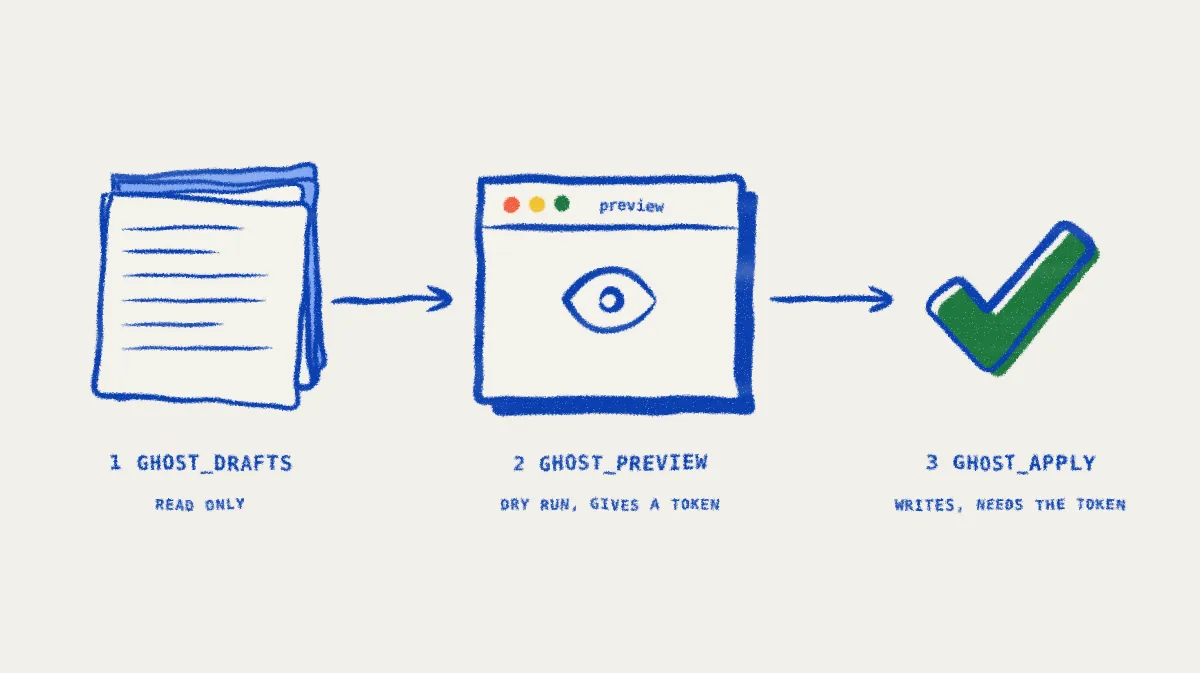 Read, preview, apply. Only the last step writes, and it needs the token from the second.
| tool | what it does | writes? |
|---|---|---|
ghost_drafts |
lists drafts with no images, with their h2 headings; with an id, returns that draft’s full text |
no |
ghost_preview |
checks a plan against a draft, renders every image, shows where each goes, returns a token |
no |
ghost_apply |
uploads the images and inserts them, only with the token for the same plan on the unchanged draft | yes |
The rules are in the code, not in the prompt:
- Drafts only. Published and scheduled posts are skipped.
- Imageless drafts only. A draft that already has a feature image or any inline image is left alone.
- One image per section at most. A section runs from one h2 to the next. A plan that asks for two, or names a heading that is missing or ambiguous, is refused for that post.
- Nothing else changes. The update sends the post body,
feature_image,feature_image_altand the last-edited time, so a concurrent edit in Ghost makes the write fail instead of overwriting it. It never changes the status, never publishes and never sends a newsletter or email.
Ask the assistant for featured images
Paste this into your assistant:
Use the levni MCP server. Call ghost_drafts to list my drafts without
images. Pick the oldest one and read it with ghost_drafts and its id.
Call scene_guide once, then design a featured image (one clear idea,
no text in the picture) and at most one inline image for the section
that most needs one. Write alt text for each. Call ghost_preview and
show me the previews and where each image goes. Do not call ghost_apply
until I say yes.
The assistant reads the draft, picks objects from the library with list_props, writes scenes, checks them with render_scene and the layout critic, and builds a plan.
Review the preview
A plan is the draft’s id, a cover and an optional inline list. Each image is a Levni scene (or a ready image file) with alt text; inline images also name the h2 they follow. For a draft about saving energy at home, the plan could look like this:
{ "id": "64f0c0ffee0123456789abcd",
  "cover": { "alt": "A plug on a yellow disc with a light bulb beside it", "scene":
    { "seed": 32, "clip": [60, 52, 1080, 569], "elements": [
      { "type": "panel", "x": 60, "y": 52, "w": 1080, "h": 569, "color": "tone" },
      { "type": "disc", "x": 600, "y": 320, "r": 220, "color": "mustard" },
      { "type": "prop", "name": "plug", "x": 600, "y": 330, "size": 400, "rot": -12, "shadow": true },
      { "type": "prop", "name": "lightbulb", "x": 930, "y": 220, "size": 170 },
      { "type": "ticks", "x": 1000, "y": 150, "angle": -40, "size": 40 }
    ] } },
  "inline": [
    { "after": "What we changed", "alt": "Bar chart of a monthly bill before and after, sample data", "scene":
      { "seed": 33, "elements": [
        { "type": "label", "text": "Monthly bill, before and after (sample data)", "x": 120, "y": 90, "size": 18 },
        { "type": "bars", "x": 120, "y": 130, "w": 960, "h": 440, "values": [100, 82], "labels": ["Before", "After"], "highlight": 1, "showValues": true, "prefix": "€", "labelSize": 18, "gap": 0.5 }
      ] } }
  ] }
 The featured image from the plan above.
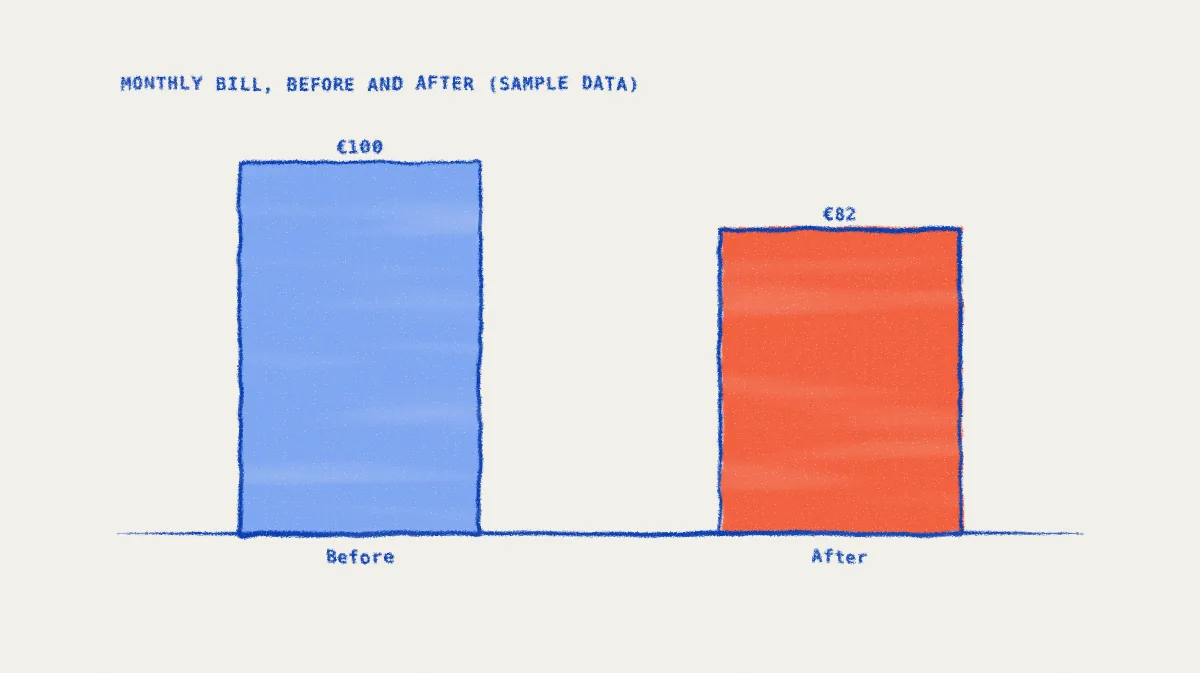 The inline image, placed after the “What we changed” heading and its first paragraph.
ghost_preview uploads nothing. It returns the list of planned edits, a small preview of each image and a token. Read the alt text as carefully as the pictures: it is what screen readers and search engines see. If you want a change, ask for it; the assistant edits the plan and previews again, which gives a new token.
Each inline image goes after its heading and that heading’s first paragraph, never past the end of the section. Headings match ignoring case, extra spaces and curly or straight quotes; if there is no exact match, a unique heading that starts with the same first 20 characters is accepted.
Approve and apply
When the preview looks right, say so. The assistant calls ghost_apply with the same id, cover, inline and the token. The token is made from the exact plan and the draft’s last-edited time, so ghost_apply refuses if anything differs: a different plan, a changed scene, or a draft that someone edited in Ghost after the preview. In that case the assistant has to preview again and show you the new result.
Then open the draft in Ghost. The feature image and its alt text are set, the inline image sits in its section, and the post is still a draft. Publishing stays your decision, as does any newsletter.
Use the terminal instead
The same adapter works without an assistant:
export GHOST_ADMIN_API_URL=https://your-site.com
export GHOST_ADMIN_API_KEY=<id>:<secret>
npx levni ghost drafts                 # drafts without images
npx levni ghost attach plan.json       # dry run: print the planned edits
npx levni ghost attach plan.json --apply
A plan file has a posts list, and each entry has the same shape as above. Scenes can be file paths, relative to the plan file. Details are in the Ghost adapter docs.
Know the limits
- Posts from Ghost’s older mobiledoc editor have no Lexical body and are not supported.
- The adapter is tested against a mocked Ghost Admin API (v5), not a live site. Run your first preview and apply on a test site or a throwaway draft.
- The images are illustrations, not photos. For a story that needs a photo of a real person or place, use a photo.
- Library drawings are CC BY 4.0: credit “drawings by Ortak Alan (CC BY 4.0)” somewhere on your site.
What to do next
To see the kind of covers an assistant draws, read generate blog covers with Claude Code and how an agent checks its own layout. For charts inside posts, read hand-drawn charts from data. Look at the styles in the gallery, browse the library, and see everything else on the features page.
FAQs
Can an AI assistant add a featured image to a Ghost post?
Yes, to a draft. With Levni's MCP server and your Ghost Admin key, the assistant lists drafts without images, draws a cover and inline images, shows you a preview and, after you approve, uploads them and sets the draft's feature image.
Will it publish my post or send a newsletter?
No. The Ghost tools only touch posts with the status draft. The update sends the post body, the feature image and its alt text, nothing else. It never changes the status, never publishes and never sends a newsletter or email.
What stops the assistant from writing something I did not approve?
`ghost_preview` returns a token made from the exact plan and the draft's last-edited time. `ghost_apply` refuses to write without that token, with any other plan, or if the draft changed since the preview.
Where is my Ghost Admin API key stored?
In your MCP client's config, in the `env` block of the Levni server. Levni has no server of its own and sends the key only to your Ghost site.
Does it work with every Ghost site?
It needs the Admin API and posts written in Ghost's current editor (Lexical). Posts from the older mobiledoc editor are not supported. The adapter is tested against a mocked Ghost API, so try it on a test site first.