An AI agent that draws cannot always look at what it drew. Some agents never see images at all. Others see a small preview but are confident about the wrong thing, as people are. Either way, a model that writes coordinates will sometimes place a rocket half outside the frame, and nobody notices until the post is live.
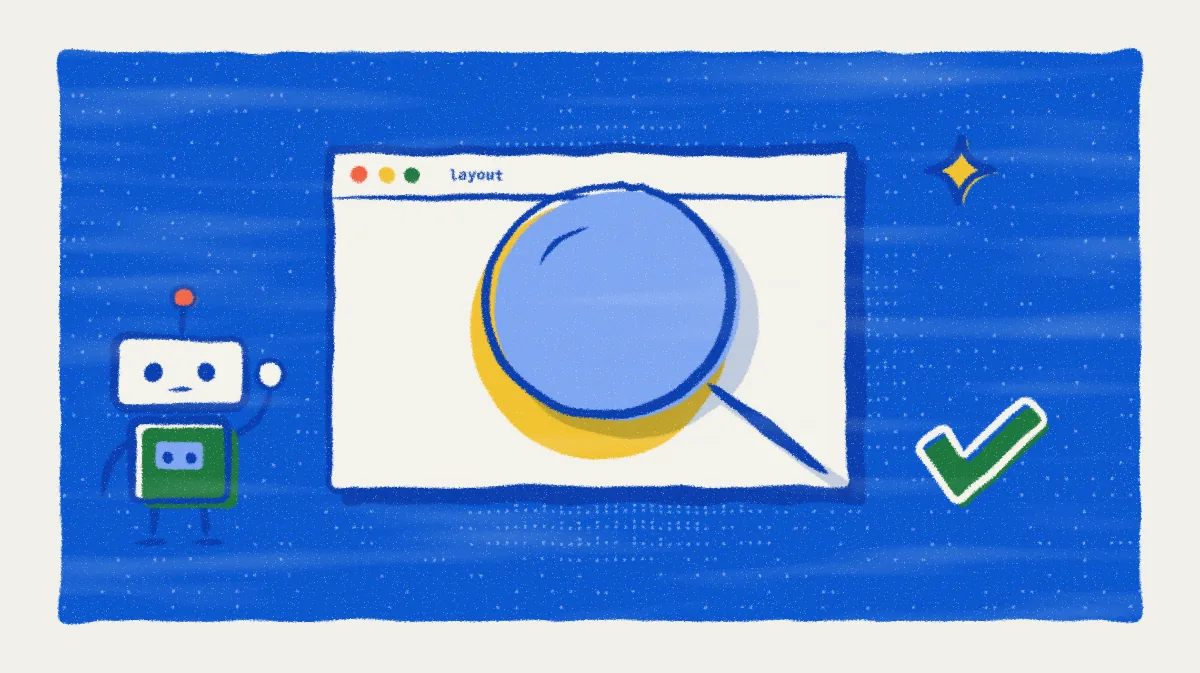
The fix is to give the agent numbers. After every render, Levni’s layout critic reads the boxes of everything the scene drew and returns a few plain sentences about what is wrong. The agent reads them, edits the scene and renders again. No image model is involved, and the check costs nothing.
This post explains each check in the critic, shows three real before-and-after fixes with the exact output, and ends with a prompt you can paste into Claude or Codex. If you have not set up the tools yet, start with the MCP server setup guide.
Understand why numbers beat a quick look
A scene is JSON, so the agent knows every coordinate it chose. What it does not know is how those coordinates add up. A prop’s drawn ink does not fill its size box exactly, and a rotation changes where the edges land. The critic works from the real ink boxes that the renderer measured, so it can tell the agent something the JSON alone does not.
The result is short on purpose. The critic returns at most six notes and groups repeats. It is also cheap enough to run on every attempt. The critique_scene tool returns only the notes with no image, so an agent can loop three or four times in a few seconds.
Read the six checks
The critic is a small file, so you can list everything it looks for.
| Check | Fires when | Note it writes |
|---|---|---|
| Off canvas | An element sits more than 20 px outside the frame (the clip card if the scene has one, else the 1200 × 673 canvas), unless it is a ground such as a panel, crowd, skyline, ribbon or tube |
label at (…) runs off the card |
| Accidental crop | A drawing, icon, sheet, window or disc is cut by the frame by less than 12 % of its size, which looks like a slip | draw "laptop" … is cut 16px by the frame |
| Hidden subject | The same kinds of object cut further, with no "crop": true: the note says how much still shows |
draw "rocket" … is mostly outside the frame, only 31% shows |
| Lopsided weight | The lighter half of the canvas holds less than 35 % of the heavier half | weight is lopsided (right heavy) |
| No focal point | Nothing reaches roughly 200 px in both directions | no clear focal symbol |
| Icon overlap | Two icons share more than 35 % of the smaller one’s area | two icons overlap heavily near (…) |
| Repeats | The same note fires several times | The note with ×3 after it |
A few details matter. Every cut is reported unless the element says "crop": true, so a bold crop has to be declared; that keeps a half-visible subject from passing as a style choice. The frame is the card when the scene sets clip. Panels are grounds, not objects, so a panel running off the edge is fine. And coordinates in repeated notes show as (…) once they are grouped.
Notice the critic does not say what is wrong with the story. It will not tell you a rocket is the wrong metaphor for savings. That is the part you or a vision-capable agent still have to judge, by reading the preview.
Fix an accidental crop
A prop pushed against the edge of the card is the commonest slip. Here is a scene with a magnifier as the subject and a laptop placed at x: 1090, close to the right edge of the card:
{ "type": "prop", "name": "laptop", "variant": 1, "x": 1090, "y": 470, "size": 300 }
Run on the whole scene, the critic says:
- draw "laptop" (ink box 982,368 234×192) is cut 16px by the frame: pull it in or crop it boldly (set "crop": true)
The note names the prop, gives its ink box and says how many pixels are lost. The agent has two honest choices: pull the laptop in, or crop it hard on purpose. Pulling it in is the fix here. Changing x from 1090 to 930 clears the note.
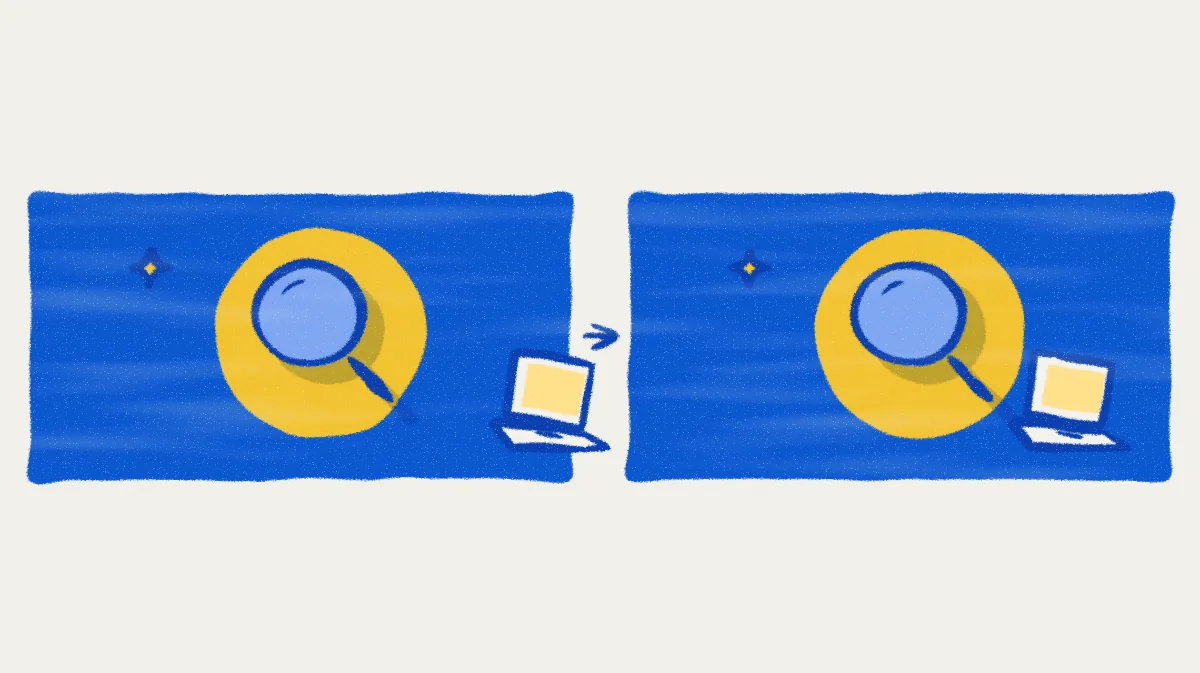 Left: the laptop overhangs the frame. Right: after moving it from x 1090 to x 930.
Both cards in these figures are drawn at half size from the exact same elements, so you can compare them side by side.
Fix lopsided weight
The second note comes from a scene where everything sits on one side. The magnifier, its sun and a sparkle are all on the right, and the left half is empty blue:
- weight is lopsided (right heavy): balance it or make the empty side intentional
The wording is careful. Sometimes an empty side is the design: a big subject on one side with room for a headline in the other. The critic cannot know. It tells the agent which side is heavy and asks it to choose. Here we balance it by moving the magnifier a little to the right of centre and adding a laptop on the left:
{ "type": "prop", "name": "laptop", "variant": 1, "x": 300, "y": 420, "size": 430 }
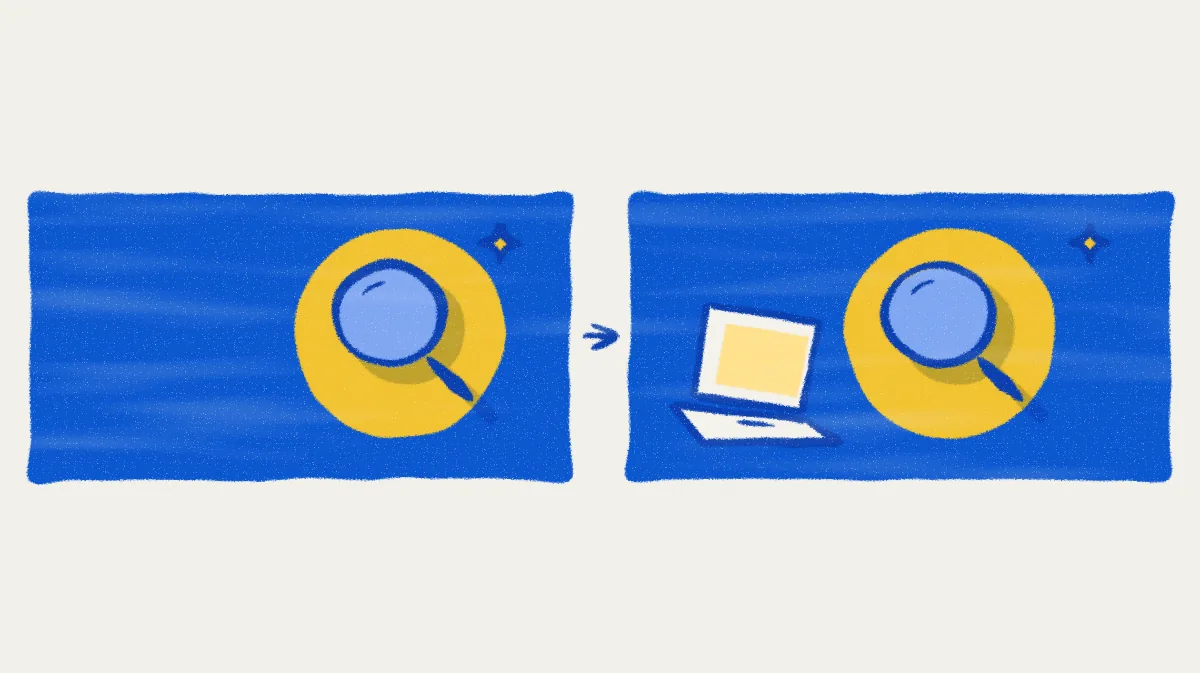 Left: right-heavy. Right: a laptop on the left balances the magnifier.
The same scene now returns - critic: no layout problems found. The weight is not equal, since the magnifier is the focal object and should win, but the lighter half now holds more than a third of the heavier one.
Fix a missing focal point
The third check protects the idea of one clear subject. Take a scene with a small magnifier, a gear, a tick and a sparkle spread over the card, each around 100 px:
- no clear focal symbol: one element should be at least ~220px
Nothing is wrong with any single prop. The problem is that none of them leads. The agent fixes this by promoting one object: a bigger magnifier at 380 px on a mustard disc, with the others left small to support it.
{ "type": "disc", "x": 640, "y": 330, "r": 210, "color": "mustard" },
{ "type": "prop", "name": "magnifier", "variant": 0, "x": 640, "y": 330, "size": 380, "shadow": true }
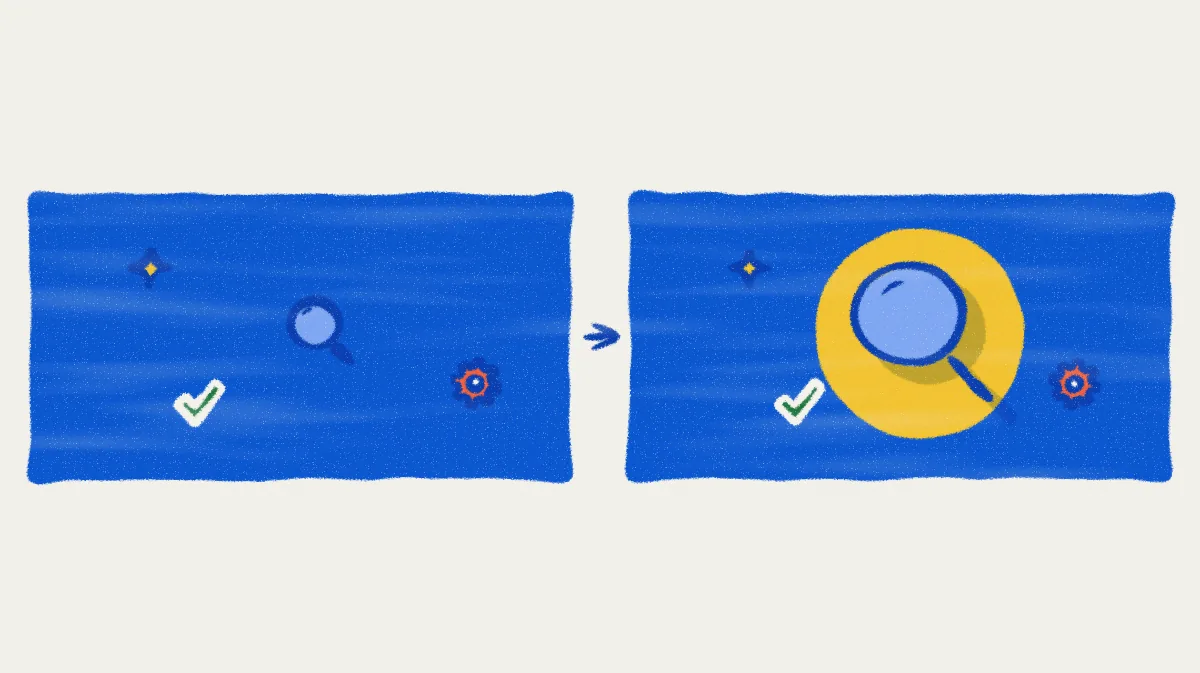 Left: four small props, no leader. Right: one large subject with the others in support.
The right-hand figure itself reports a lopsided note, because the large disc pulls the weight to the right of a canvas that holds two cards. We left that note on purpose: it is a figure about the cards, not a cover.
Handle off-canvas elements and overlaps
The remaining checks work the same way. If an agent writes a window at x: 950 with a width of 420, it ends 170 px past the right edge, and the critic says:
- window at (…) runs off the canvas
For icons, the critic compares each pair and flags any two that share more than 35 % of the smaller one’s area. Icons need the optional @tabler/icons package, so most scenes built from props never trigger that note. Props are different from icons here: because they are drawings that already fit their box, the common mistakes are crops, balance and scale, not overlaps.
Check props with levni check
The critic looks at scenes. A second command looks at the drawings themselves:
npx levni check laptop plug
For every variant it prints how much of the 0 to 100 box the ink fills, where its centre sits and which colours it uses, and adds a fix: line when something is off:
laptop#0  size 88  centre (50,50)  colours tone,ink,paper  ok
laptop#1  size 78  centre (53,48)  colours paper,ink,tone-mustard  ok
plug#0  size 72  centre (47,50)  colours ink,tone,paper,coral  ok
Run it with no names and it checks the whole library, printing only what needs a fix and ending with all ok when nothing does. It is the right tool when you add your own props, and for agents that cannot look at a contact image. Writing props is covered in the project’s contribution notes.
Give your agent the loop
This prompt turns the critic into a habit. Paste it into Claude or Codex once the Levni MCP server is connected:
Draw a cover for the article below with the levni MCP server.

Loop until clean, for at most five rounds:
1. Write or edit the scene (1200 x 673, one focal object of at least 220 px).
2. Call critique_scene and read every note.
3. Fix each note. If a crop or an empty side is on purpose, set "crop": true
   or say why you are keeping it.
4. When critique_scene is clean, call render_scene once and look at the preview.

Report the notes you saw in each round and the notes you kept on purpose.
The report is the useful part. It shows whether the agent really read the notes or only said it did.
What to do next
Read the Claude Code cover guide to watch the critic work inside a full cover task. Browse the Levni library for props that already pass levni check, and see Open Graph images from JSON to make the share card that goes with each cover.
FAQs
How can an AI agent check an image it cannot see?
By measuring it. Levni's critic reads the boxes of everything it drew and reports geometry: elements off the canvas, objects cut by the frame, lopsided weight, no focal point, overlapping icons. The agent gets plain sentences it can act on, even if it never looks at the picture.
Does the layout critic judge whether an illustration looks good?
No. It is cheap and blind to meaning. It catches mechanical mistakes that a person would also spot at a glance. Whether the picture says the right thing is still a job for a human or for an agent that can read the preview image.
How many notes does the critic return?
At most six. Repeats are grouped, so ten trees cut by the frame become one line with a count. Treat the list as a to-do list and fix from the top.
What do I do with a note I want to keep?
Set "crop": true on the element when a crop is on purpose. The critic then knows it is intended and stays quiet about it. For a lopsided layout you chose, you can leave the note in place and say why.
What does levni check do?
It measures props rather than scenes. For each variant it prints how much of the 0 to 100 drawing box the ink fills, where its centre sits and which colours it uses, and says what to fix. It is made for agents that cannot look at a contact image.