
A link with no good image looks like spam. A link with a clear picture gets read. That picture is the Open Graph image, the one chat apps and social networks show when someone shares your page. Making one by hand for every post is a chore, and making one with an image model gives you a different style each time.
You can draw it from a JSON scene instead. This guide makes a share image with Levni, an open-source illustration engine. You write a scene, render a PNG and add four meta tags. There is no image model, no API key and no cost per image. You need Node 20 or newer and about ten minutes.
The tricky part is the size. Social cards want 1200 by 630 pixels, and the Levni canvas is 1200 by 673. The section on the safe area explains the difference and how to keep your subject out of the crop.
Know the size social platforms want
Platforms read a few meta tags in your page head and fetch the image they point to. The widely used size is 1200 by 630 pixels, about 1.91 to 1. The Open Graph protocol describes the tags, and every large platform follows it or something close. The twitter:card value summary_large_image asks for a wide card that uses the same picture.
Three practical limits follow. Use PNG or JPEG for the share image, because some platforms still do not read WebP there. Keep the file modest, since the platform’s crawler fetches it once and gives up on slow files. And never put the only copy of your message in the image edge, because several surfaces crop it.
Understand the 1200 by 673 canvas
Every Levni scene is drawn on a 1200 by 673 canvas, a ratio of about 1.78 to 1. That suits a blog header. A share image is 43 pixels shorter, so the conversion is a crop of the bottom 43 pixels and nothing else. The width stays at 1200.
Most Levni covers sit on a hand-drawn card set in from the edge, with clip set to [60, 52, 1080, 569]. That card ends at y 621, which is above the crop line at y 630. So a standard cover survives the trim whole. If you draw full bleed, the bottom strip is what you lose.
Draw the scene and mark the safe area
This scene shows the rule instead of just stating it. It fills the area that will be kept, hatches the strip that will be cut off at the bottom, and draws a white frame around the safe area where the subject should stay. Make a file called og-guide.json:
{ "seed": 31, "background": "paper", "elements": [
  {"type": "panel", "x": 0, "y": 0, "w": 1200, "h": 630, "color": "blue"},
  {"type": "sunburst", "x": 600, "y": 300, "size": 420, "color": "mustard", "rayColor": "tone-mustard"},
  {"type": "prop", "name": "megaphone", "variant": 0, "x": 590, "y": 310, "size": 380, "rot": -10, "shadow": true},
  {"type": "prop", "name": "sparkle", "x": 300, "y": 170, "size": 80},
  {"type": "prop", "name": "flag", "variant": 0, "x": 930, "y": 410, "size": 200},
  {"type": "hatch", "x": 0, "y": 630, "w": 1200, "h": 43, "color": "coral", "angle": 45, "gap": 7},
  {"type": "line", "points": [[100, 50], [1100, 50]], "color": "paper", "weight": 4},
  {"type": "line", "points": [[1100, 50], [1100, 580]], "color": "paper", "weight": 4},
  {"type": "line", "points": [[1100, 580], [100, 580]], "color": "paper", "weight": 4},
  {"type": "line", "points": [[100, 580], [100, 50]], "color": "paper", "weight": 4}
] }
 The hatched strip at the bottom is the 43 px that a 1200 by 630 crop removes. The white frame is the safe area.
Keep the focal object, here the megaphone, inside the frame and near the centre. Small supporting props such as the sparkle and the flag can sit nearer the edge, but not outside the frame. The frame in this scene has 100 px on the left and right and 50 px at the top, and ends at y 580, which leaves a margin above the cut line.
Why the margin? Platforms and apps crop for different reasons. A chat app may round the corners. A feed may show the picture as a square. A link preview may cut a few pixels off every side. A subject that sits well inside the frame survives all of those.
Render the scene to PNG
Once you have your real cover scene, render it with the CLI. The extension picks the format:
npx levni render cover.json public/og/cover.png
The command prints the layout critic’s notes. Fix them before you continue. If you work through an agent, call render_scene with out set to public/og/cover.png and it does the same. The setup for that is in the MCP server guide.
You now have a 1200 by 673 PNG. The last step is the trim.
Crop the canvas to 1200 by 630
Levni itself renders the full canvas, so crop it with sharp, the image library Levni already depends on. Save this as og.mjs:
import sharp from 'sharp';

await sharp('public/og/cover.png')
  .resize(1200, 630, { fit: 'cover', position: 'top' })
  .png({ compressionLevel: 9 })
  .toFile('public/og/og.png');
fit: 'cover' with position: 'top' keeps the top of the picture and removes the bottom 43 pixels. That is the same crop the site you are reading uses for its own post cards. Run it with node og.mjs. For a blog with many posts, loop over the cover files and write one og.png beside each.
See the same cover on different platforms
One drawing has to work in several frames. This figure shows the same subject in a wide 1.91 to 1 card, a square and a tall 4 to 5 card:
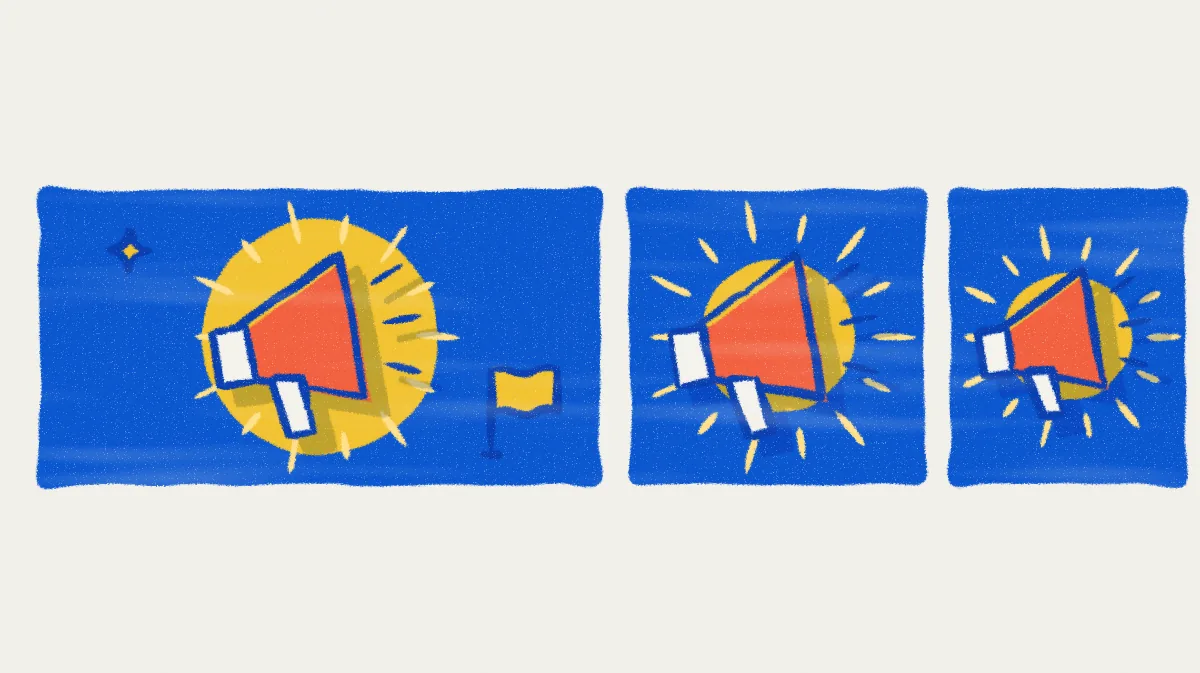 One subject in three frames. The wide card shows the flag and sparkle; the square and tall crops keep only the megaphone.
That is why the subject sits in the middle with a margin around it. The wide card has room for extras. The square and tall crops lose them and still read. The extras are decoration, so losing them is fine. Losing the megaphone would not be.
You do not draw three images. You draw one with the subject centred, and the platform picks the crop. This is also a good test: cover everything outside a centred square with your hand. If the subject still makes sense, the image is safe.
Add the meta tags
Put these in the <head> of the page. Replace the address with your own. The image address must be absolute, with https://:
<meta property="og:title" content="Create Open Graph Images from a JSON Scene" />
<meta property="og:description" content="Draw a social share image from a JSON scene." />
<meta property="og:image" content="https://example.com/og/cover.png" />
<meta property="og:image:width" content="1200" />
<meta property="og:image:height" content="630" />
<meta property="og:image:alt" content="A megaphone on a yellow sunburst" />
<meta name="twitter:card" content="summary_large_image" />
In an Astro layout, build the address from the page’s own URL so every post points at its own image:
---
const { title, description, slug } = Astro.props;
const ogUrl = new URL(`/og/${slug}.png`, Astro.site).href;
---
<meta property="og:title" content={title} />
<meta property="og:description" content={description} />
<meta property="og:image" content={ogUrl} />
<meta property="og:image:width" content="1200" />
<meta property="og:image:height" content="630" />
<meta name="twitter:card" content="summary_large_image" />
Write the og:image:alt text too. The picture has no words in it, so the alt text is the only place a screen reader learns what it shows.
Test the image before you share
Do not trust your own browser. Each platform fetches the page itself, caches the result and may read different tags. Paste your page address into each platform’s own link inspector or card validator. They show the image they fetched, the size they read and any tag they could not parse.
If you change the image after a first share, the platform may keep the old one. Most validators have a refresh button. Another reliable trick is a new file name, such as cover-2.png, so the address changes.
Check for the usual faults: a relative image address, a PNG over a few megabytes, a file behind a login, and a missing twitter:card tag.
Ask an agent to do the whole batch
Once the MCP server is connected, one prompt makes the share image for every post that lacks one:
For each markdown file in posts/ without a file in public/og/:
- draw a 1200 x 673 cover with the levni MCP server, one focal object,
  no text, subject centred inside x 100-1100 and y 50-580
- fix every critic note, then render it to public/og/<slug>.png
- crop it to 1200 x 630 with sharp: fit cover, position top
- add og:image, og:image:width, og:image:height and twitter:card to the layout
List any critic note you kept on purpose.
The same scenes give you a cover for the page and a card for the share. Because every scene uses one style and one library, the cards read as one publication. Ortak Alan drew about 500 article covers this way.
What to do next
If you want the cards in your brand colours, a scene takes a style field with your own inks: see brand-colour illustrations. For the full cover workflow, read how to generate blog covers with Claude Code, and browse the Levni library to see the props your cards can use.
Related: to render the same scene as a square post, a story and a YouTube thumbnail as well as the share card, read one illustration, every social image size.
FAQs
What size is an Open Graph image?
1200 by 630 pixels, a ratio of about 1.91 to 1, is the size most platforms ask for. Keep the file small, and keep the subject well inside the frame because some surfaces crop the edges.
What size should a Twitter card image be?
For the summary_large_image card, use the same 1200 by 630 image. It is wide, so it fills the card, and the Open Graph tags are a fallback when twitter-specific tags are missing.
Why is my Levni cover 673 pixels tall and not 630?
The Levni canvas is 1200 by 673, a ratio of about 1.78 to 1, which suits blog headers. To get a 1200 by 630 share image, trim 43 pixels from the bottom. The house covers sit on a card that ends at y 621, so nothing is lost.
Can I use WebP for og:image?
Some platforms still do not read WebP for share previews, so use PNG or JPEG for og:image even if your page shows WebP. Levni writes PNG, WebP and SVG, and PNG is the safe choice for social cards.
How do I test an Open Graph image before I post it?
Paste the page address into each platform's own link inspector or card validator. They show the image they fetched and the tags they read, and most let you refresh a cached preview after you change the image.