
Flat icons are everywhere, and a set of 3D icons is what makes a landing page or a feature list look considered. Getting them usually means modelling each one in a 3D tool, buying a pack in one fixed style, or prompting an image model and hoping the next icon matches.
There is a cheaper route. Levni, an open illustration library and engine, has an element called extrude3d. Give it the name of any drawing in its library and it turns the flat drawing into a 3D icon: the filled shapes become one thick object with rounded, lit sides, the front keeps the drawing’s colours and the ink lines become a raised rim. It also works on your own SVG path data.
This guide makes one icon, compares it with the flat drawing, recolours it, rotates it and extrudes a shape you drew yourself. Everything runs on your machine, there is no account or API key, and every icon is free. You need Node 20 or newer.
Make your first 3D icon
Install Levni from GitHub (it is not on npm yet):
npm install github:BoraGkc/levni
Save this as bulb.json:
{ "finish": "soft", "background": "#E9EEF7",
  "elements": [{ "type": "extrude3d", "name": "lightbulb", "x": 600, "y": 336, "size": 380 }] }
Render it:
npx levni render bulb.json bulb.png
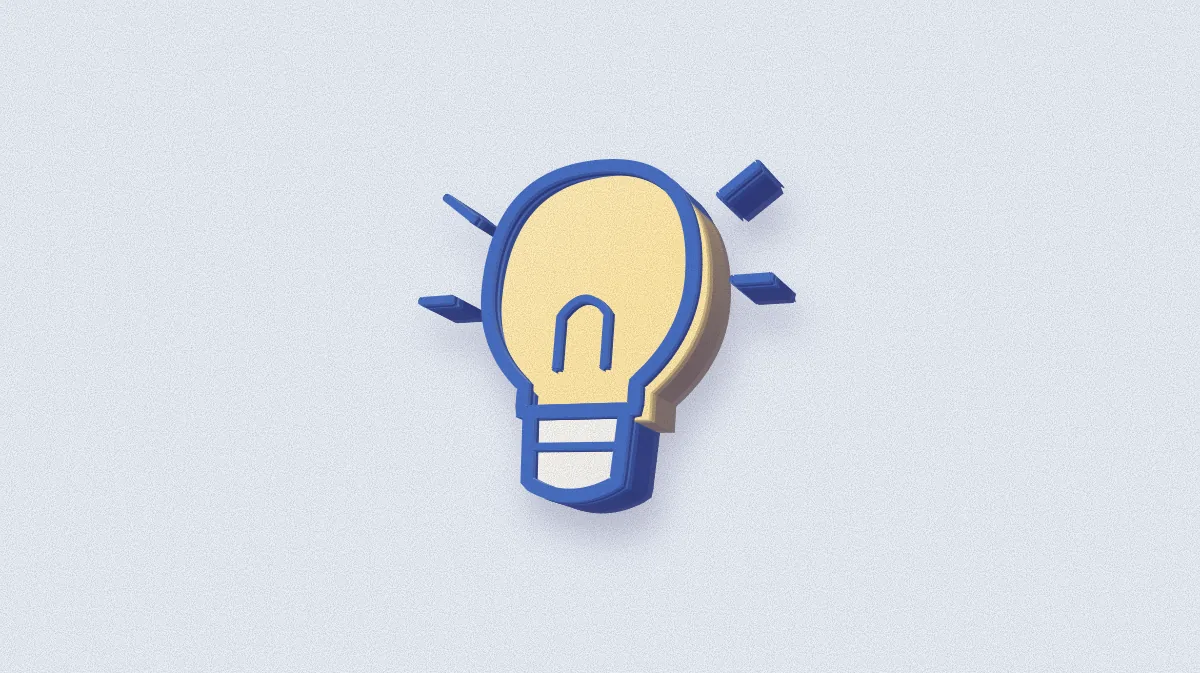 One extrude3d element. The bulb keeps its library colours and gains thickness, light and a shadow.
"finish": "soft" gives the scene clean edges and a fine film grain, which suits 3D. x and y are the centre of the icon on the 1200 by 673 canvas, and size is how big it is: extrude3d fits the visible ink to that size, so a tall drawing and a wide one come out the same overall size.
See what the extrusion adds
It helps to see the flat drawing next to the 3D one. This scene draws the library’s trophy as a normal prop on the left and as extrude3d on the right:
{ "seed": 4, "finish": "soft", "background": "#E9EEF7", "elements": [
  { "type": "prop", "name": "trophy", "x": 330, "y": 336, "size": 330 },
  { "type": "arrow", "from": [520, 336], "to": [670, 336], "bend": 0.15, "color": "ink" },
  { "type": "extrude3d", "name": "trophy", "x": 870, "y": 336, "size": 330 }
] }
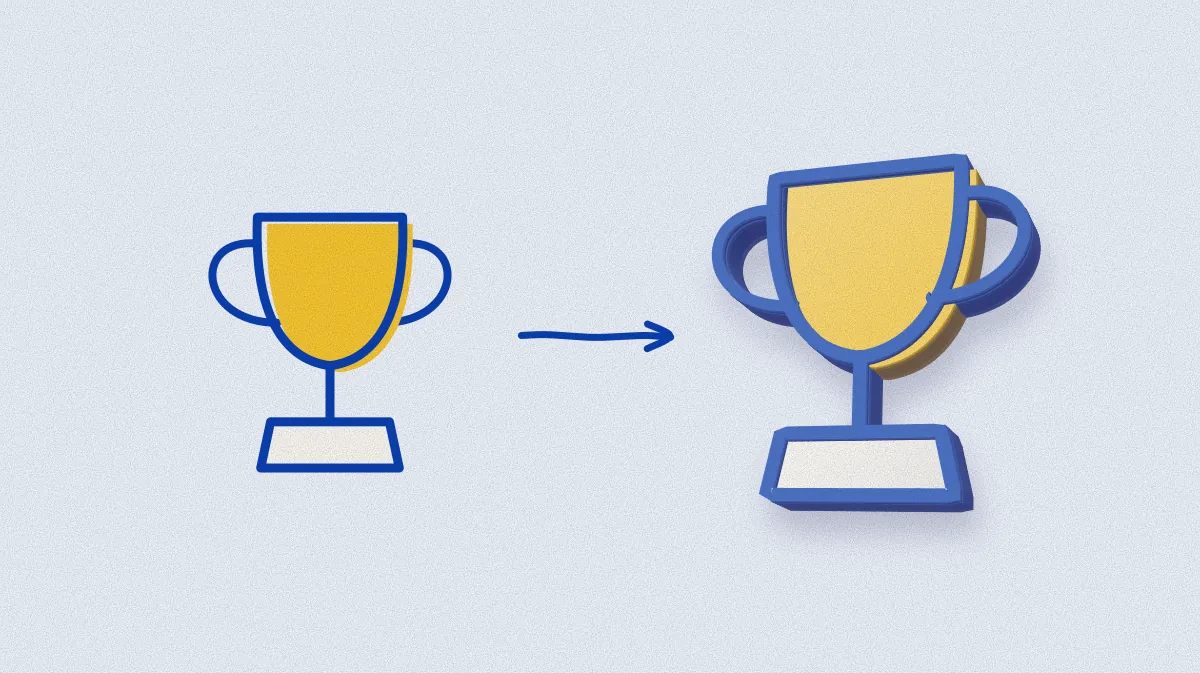 Left: the flat library drawing. Right: the same drawing through extrude3d.
The extrusion keeps everything that makes the drawing recognisable: the outline, the fills and the proportions. What it adds is a side wall with its own shading, a gloss on the front face (switch it off with "sheen": false), and the ink lines lifted into a rim. If you prefer a plain solid without the rim, set "lines": "none".
Find an icon to extrude
Any drawing in the Levni library works, and there are more than 1,500 of them on 15 shelves, searchable in English and Turkish. Search from the terminal:
npx levni list camera
npx levni sheet icons.png camera megaphone chat-bubbles
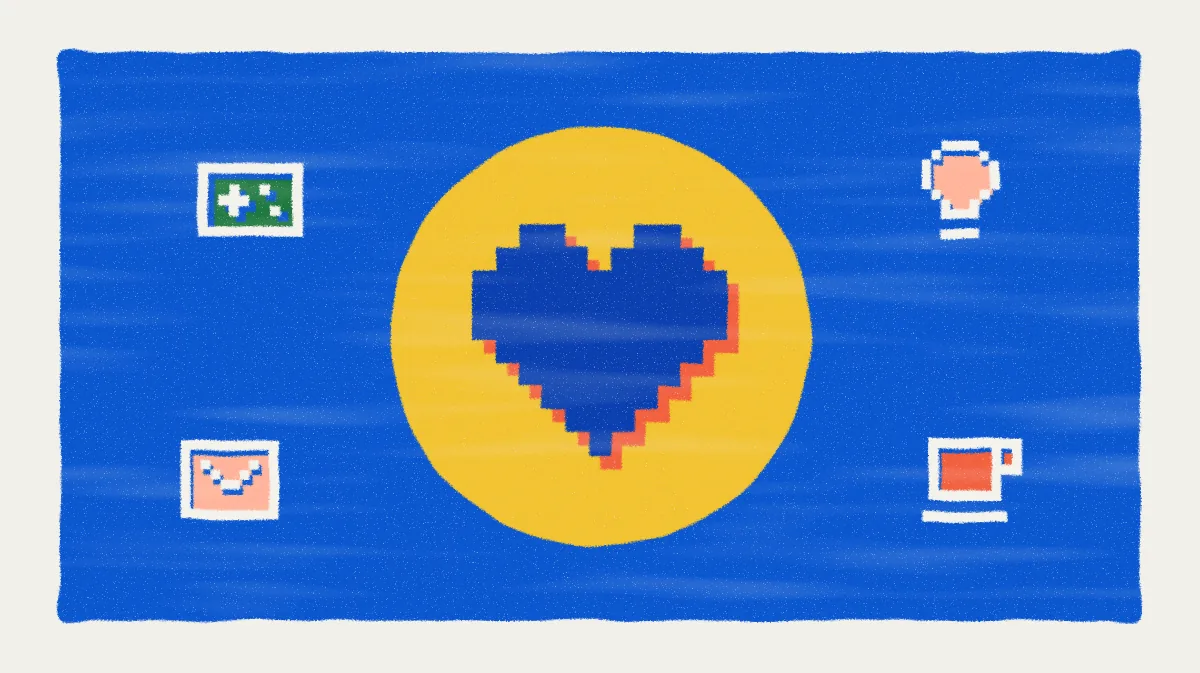
list prints matching names with their variant count. sheet draws a contact sheet with every variant numbered, so you can pick one by eye and pass it as "variant": 1. The pixel icons extrude well too: the cover of this post has pixel-heart among the others.
Drawings with clear filled shapes make the best 3D icons. Thin, open line drawings have little to extrude, so they read more like wire.
Recolour the icon
The front of the icon keeps the library’s house colours: blue, coral, mustard, green and their light tones. You can change them three ways.
{ "finish": "soft", "background": "#E9EEF7", "elements": [
  { "type": "extrude3d", "name": "heart", "x": 230, "y": 336, "size": 250 },
  { "type": "extrude3d", "name": "heart", "x": 600, "y": 336, "size": 250, "recolor": { "coral": "mustard" } },
  { "type": "extrude3d", "name": "heart", "x": 970, "y": 336, "size": 250, "palette": "blue" }
] }
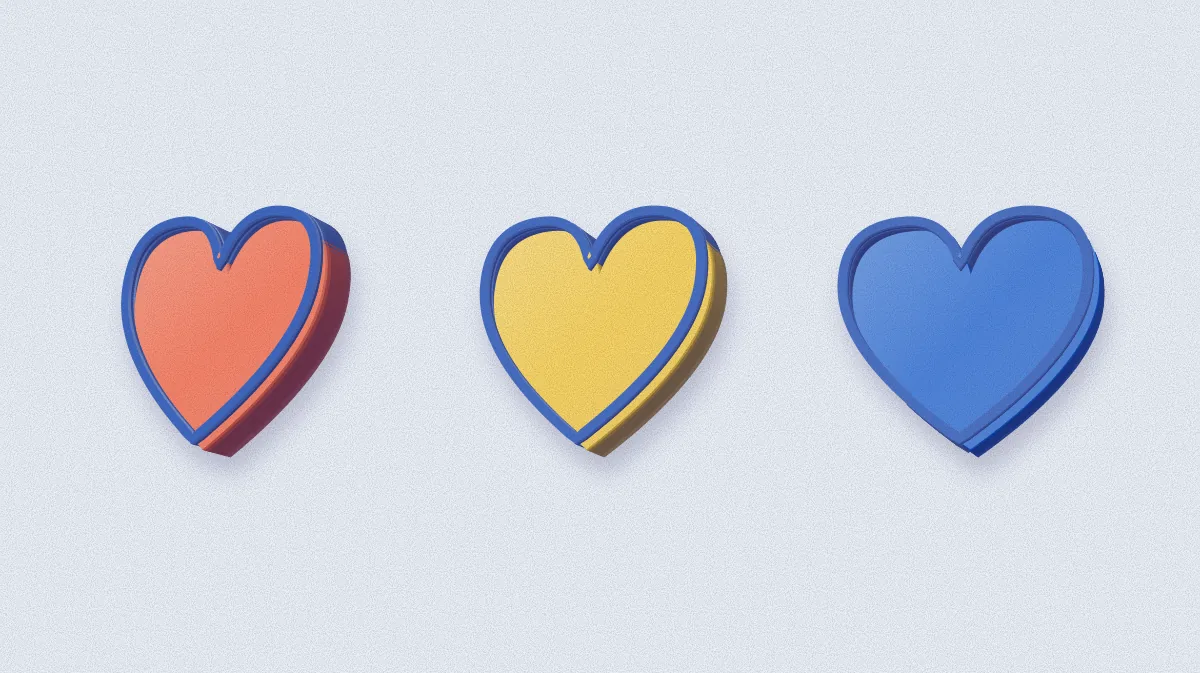 The default colours,
recolor swapping coral for mustard, and "palette": "blue".
recolorswaps one house colour for another on that icon only. The new colour can be a house name or a hex value, so{ "coral": "#8E3BC9" }gives you a violet heart."palette": "blue"folds every accent into the blue family, which suits a calm or serious page.inkrecolours just the raised lines, for example"ink": "#1F3A5F"for a dark navy rim.
For a whole icon set in brand colours, put the same recolor and ink on every icon. The flat drawings take a scene-wide style instead; the guide to brand colour illustrations covers that.
Rotate and thicken it
rotate takes three angles in degrees, [rx, ry, rz], applied in that order about the icon’s centre. The default is [-16, -26, 3], a gentle three-quarter view. depth is the thickness as a fraction of the size, 0.16 by default.
{ "finish": "soft", "background": "#E9EEF7", "elements": [
  { "type": "extrude3d", "name": "rocket", "x": 230, "y": 336, "size": 260, "rotate": [0, 0, 0] },
  { "type": "extrude3d", "name": "rocket", "x": 600, "y": 336, "size": 260 },
  { "type": "extrude3d", "name": "rocket", "x": 970, "y": 336, "size": 260, "rotate": [-34, -10, 2], "depth": 0.22 }
] }
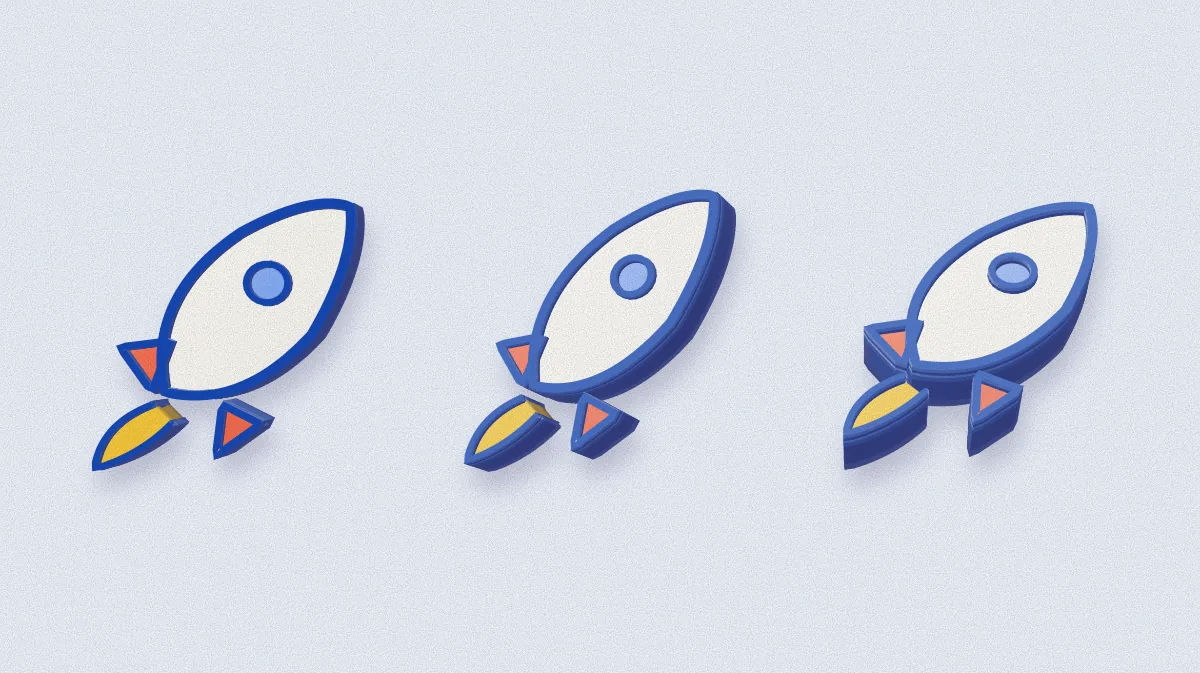 Straight on, the default angle, and tilted back with a deeper extrusion.
For a set of icons, pick one angle and use it on every icon. A matching angle and light is most of what makes a set look like a set. Turning icons too far shows a lot of side wall and the front gets hard to read, so keep each angle under about 40 degrees.
Extrude your own drawing
You are not limited to the library. Give extrude3d a paths list instead of a name: SVG path data in a 0 to 100 box, with colour names for fill and stroke. This is the same format every library drawing uses, so anything you draw this way can also be contributed to the library.
{ "finish": "soft", "background": "#F2EEE6", "elements": [
  { "type": "extrude3d", "x": 600, "y": 336, "size": 380, "rotate": [-14, -24, 4], "paths": [
    { "d": "M50 12 L61 38 L89 40 L67 58 L74 86 L50 71 L26 86 L33 58 L11 40 L39 38 Z", "fill": "mustard", "stroke": "ink", "weight": 9 },
    { "d": "M50 34 L55 47 L68 48 L58 56 L61 69 L50 62 L39 69 L42 56 L32 48 L45 47 Z", "fill": "coral", "stroke": "none" }
  ] }
] }
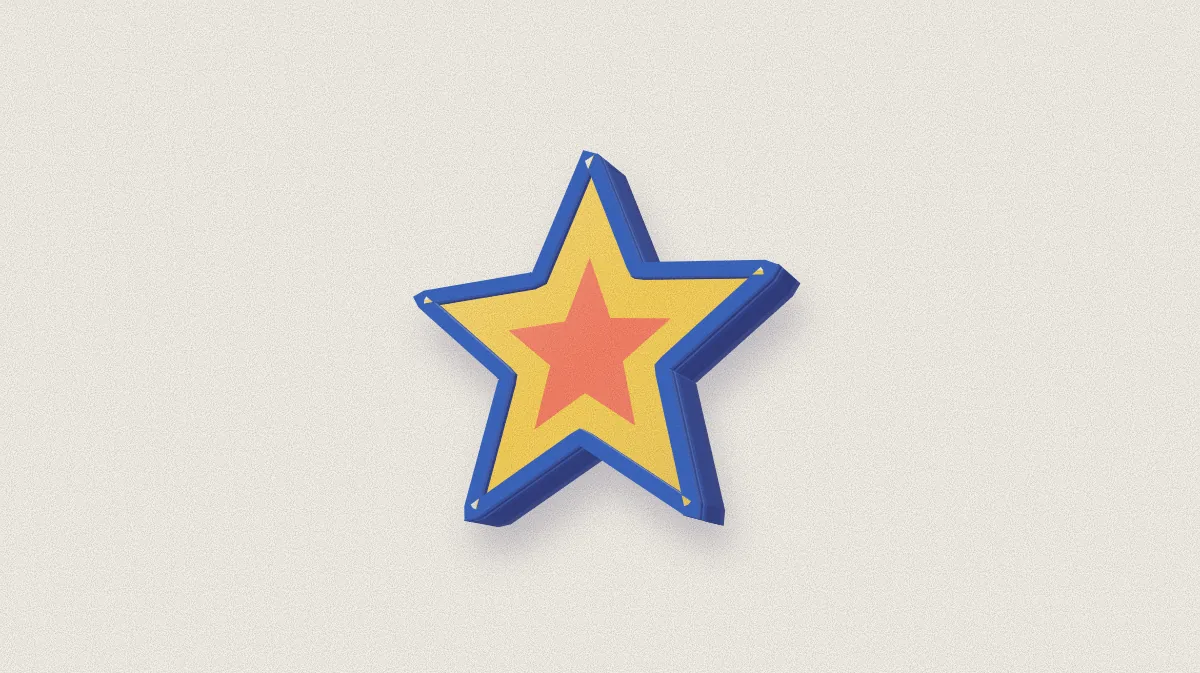 A star drawn as two paths, extruded. The outer path’s stroke becomes the rim.
Use colour names rather than hex values in your paths, so recolor, palette and scene styles still work on the icon.
Export and check
The file extension picks the format: .png, .webp or .svg. The render prints the layout critic’s notes, which flag icons running off the canvas or overlapping. For icon rows, also look at the spacing yourself.
To have an assistant build a whole set, add the Levni MCP server (setup) and paste:
Use the levni MCP server. Call scene_guide once. Make a row of five 3D
icons for a features page about publishing: search with list_props, then
use one extrude3d element per icon with "finish": "soft", the same
"rotate" on all five and the same size. Render with render_scene, fix
the critic's notes and save features.png.
What to do next
See more extruded icons in the 3D icon gallery and the soft 3D renderer on the features page. For abstract 3D covers with a title, read 3D cover images without a 3D tool. Browse the library for drawings to extrude, and find the source on GitHub.
FAQs
How do I make a 3D icon from a flat icon for free?
Write a Levni scene with `"finish": "soft"` and an `extrude3d` element that names a library drawing, for example `{ "type": "extrude3d", "name": "lightbulb" }`. Levni turns the filled shapes into one thick object with rounded, lit sides. It runs on your machine and costs nothing per icon.
Can I extrude my own SVG icon?
Yes, if you write it as path data in a 0 to 100 box. Give `extrude3d` a `paths` list instead of a `name`, with `fill`, `stroke` and `weight` on each path, the same format the library uses.
How do I change the colours of a 3D icon?
Use `recolor` to swap house colour names, for example `{ "coral": "mustard" }`, or `"palette": "blue"` to fold every accent into blues. `recolor` also takes hex values, and `ink` recolours the raised rim.
How do I rotate the icon?
Set `rotate` to three angles in degrees, `[rx, ry, rz]`. The default is `[-16, -26, 3]`, a slight three-quarter view. `[0, 0, 0]` faces you straight on. `depth` sets how thick it is.
Can I use the 3D icons commercially?
Yes. The library drawings are CC BY 4.0: credit "drawings by Ortak Alan (CC BY 4.0)". The Levni code is MIT. Icons you extrude from your own paths are yours.