
Every post needs the same picture at several social media image sizes: a wide header for the blog, a 1200 by 630 card for link previews, a square for feeds, a tall story, a YouTube thumbnail. Cropping one image into all of them cuts off the subject in at least one. Redrawing it five times is a chore, and with an image model the five versions do not quite match.
Levni, an open-source illustration engine, renders one JSON scene at every social media image size. The format field picks the canvas and reflow recomposes the scene for it: backgrounds stretch, the drawing moves as one group and scales without distortion, and a title layer adds the headline with safe margins. You write the scene once and render it five times.
This guide renders one scene at all five sizes, explains what reflow does and does not do, and is honest about where tall formats leave space. It runs on your machine with no account and no cost per image. You need Node 20 or newer.
Know the five social media image sizes
| format | size | use it for |
|---|---|---|
cover |
1200 × 673 | blog headers, the default Levni canvas |
og |
1200 × 630 | link previews (og:image, large Twitter cards) |
square |
1080 × 1080 | feed posts |
story |
1080 × 1920 | vertical stories and shorts covers |
youtube |
1280 × 720 | video thumbnails |
These are the presets in Levni. Platforms change their recommended sizes from time to time, so check the platform’s own help page for anything else. For a size that is not in the list, set "canvas": [w, h] instead.
Write the scene once
Start with a normal 1200 by 673 scene and a title. Keep the drawing compact: one focal object with a little around it travels best between formats.
{ "seed": 42, "background": "blue", "elements": [
  { "type": "disc", "x": 860, "y": 250, "r": 170, "color": "mustard" },
  { "type": "prop", "name": "coffee-cup", "x": 860, "y": 275, "size": 260, "shadow": true },
  { "type": "prop", "name": "sparkle", "x": 1070, "y": 110, "size": 60 },
  { "type": "prop", "name": "sparkle", "x": 640, "y": 160, "size": 40 }
],
  "title": { "text": "Ten habits of calm teams", "kicker": "Work", "brand": "levni.dev" } }
Install Levni from GitHub and render it:
npm install github:BoraGkc/levni
npx levni render habits.json cover.png
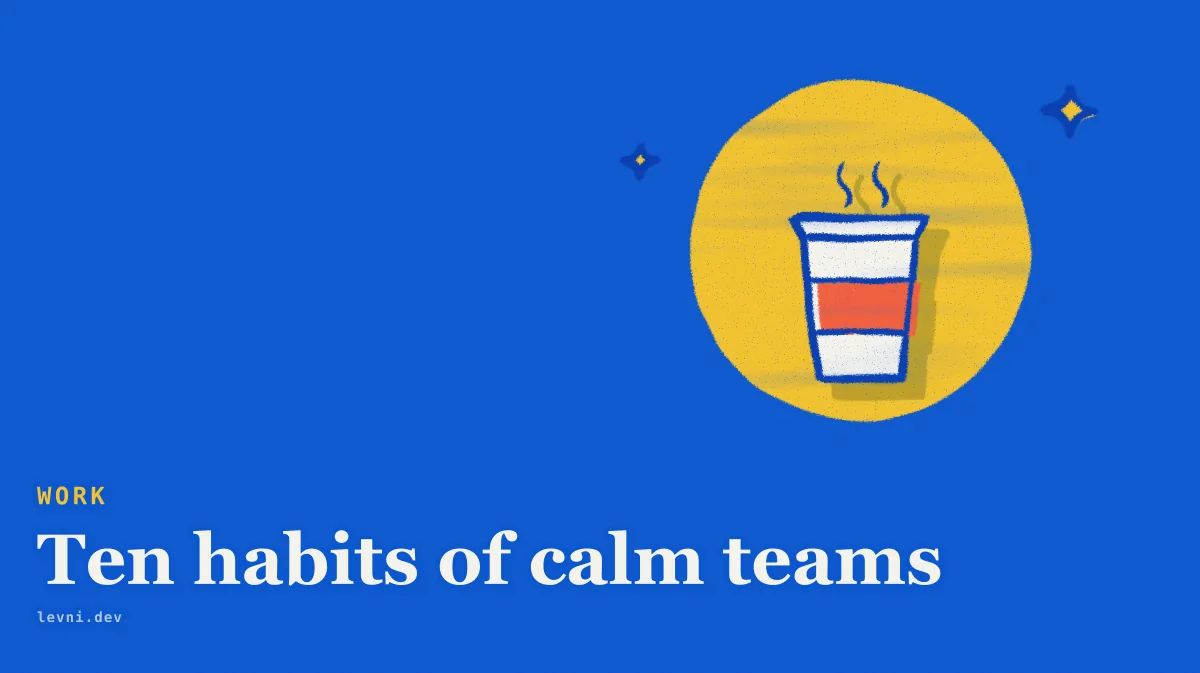 The base scene at the default cover size, 1200 by 673.
Two choices make this scene travel well. The background is blue on the scene itself rather than a panel, so every canvas is blue edge to edge. And the title has no fixed position in the art: it is a layer, so it can find its own place on each canvas.
Render every size with one flag
The CLI’s --format flag sets the format and turns reflow on:
npx levni render habits.json og.png --format og
npx levni render habits.json square.png --format square
npx levni render habits.json story.png --format story
npx levni render habits.json youtube.png --format youtube
That is the same as adding "format": "og", "reflow": true to the scene. Here are the results.

og, 1200 by 630, for link previews.

square, 1080 by 1080. The drawing is centred in the free area above the title.
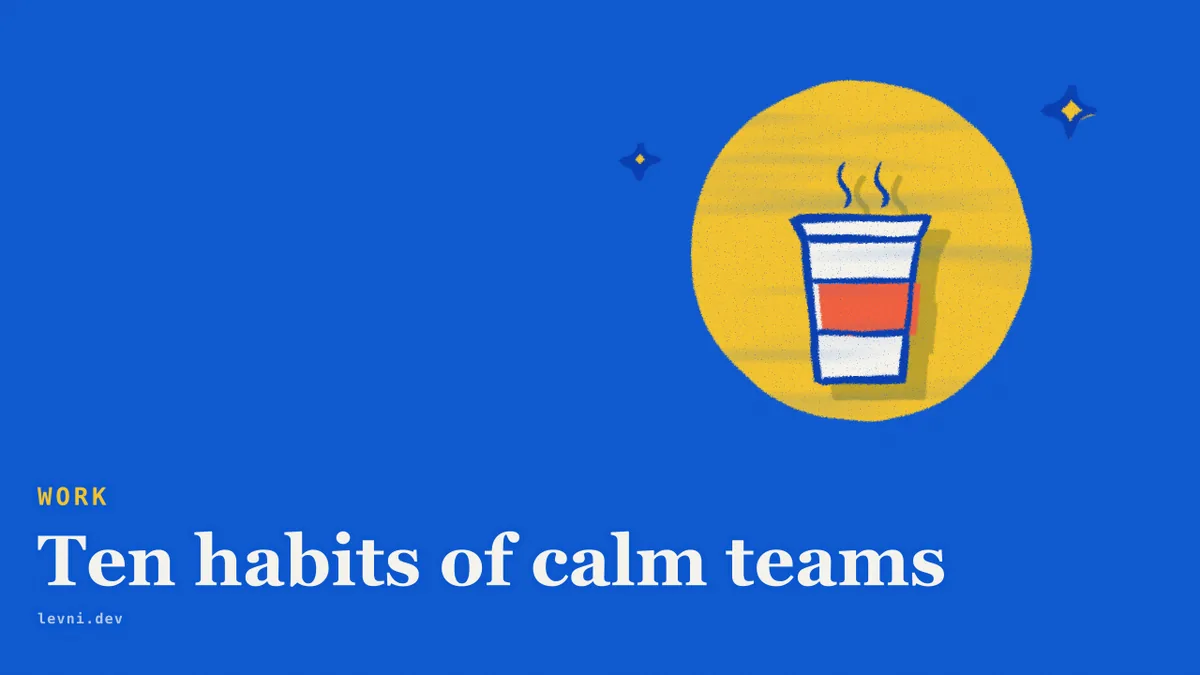
youtube, 1280 by 720.
Understand what reflow does
Reflow is a recomposition, not a crop. It works in three steps:
- Grounds stretch. Full-bleed elements, such as panels, glyph fields, waves and hatching that span at least 80 per cent of the width or height, and hills, are stretched to the new canvas. A
clipcard stretches too. - Everything else is one group. The drawing keeps its internal layout and relative positions. It scales by the smaller of the two scale factors, so it is never distorted and never cropped, and it keeps its ink widths and hand look.
- It is placed in the free area. Wide canvases keep the group’s relative position. Square and tall canvases centre it in the free area, which on a story is the upper part.
With a title, the free area leaves out the title block and a gap, so the drawing never sits under the text. The title itself takes the largest font size that fits in at most three lines, with margins of about 5.5 per cent of the short side.
Expect space on tall formats
Here is the honest part. The drawing scales by the smaller factor, and a story is 1080 wide, so the group stays about as big as it was on the cover. On a 1920-tall canvas that leaves a lot of blue:

story, 1080 by 1920. Nothing is cut, but the scene was drawn for a wide canvas.
The story keeps clear of the top 10 per cent and the bottom 14 per cent, where apps put their bars, and that adds to the calm. For some stories that is fine: a centred object and a big headline is a common story layout. If you want a full tall picture, author a tall version directly. Set "format": "story" without reflow and write coordinates for a 1080 by 1920 canvas. A scene with a format and no reflow simply uses its own coordinates on that canvas.
Wide and shallow drawings, such as a crowd along the bottom or a skyline, have the same issue on a square. Objects that sit on a ground edge on purpose can float or end short after scaling. The scene reference lists these limits under formats and reflow.
Style the title
The title layer has a few fields:
{ "title": { "text": "Ten habits of calm teams", "kicker": "Work", "brand": "levni.dev",
             "position": "band", "band": "coral", "font": "sans" } }
| field | what it does |
|---|---|
position |
bottom (default), top, left (a column) or band (a full-width colour band) |
kicker, brand |
a small line above and below the headline |
font |
serif, sans, mono or { "file": "/path/font.ttf" } |
color, kickerColor, band |
text and band colours |
Without a band, the title gets a thin halo in the scene’s background colour. That is why the example sets "background": "blue" on the scene: a blue panel on a cream background would give the text a cream halo. On busy art, use band.
The title is SVG text. PNG and WebP output use the fonts installed on the rendering machine, so install any font file you pass there too.
Wire up the tags
Put the og render in your page head as the share image. PNG is the safe choice there, because some platforms still do not read WebP for previews:
<meta property="og:image" content="https://example.com/og/ten-habits.png" />
<meta property="og:image:width" content="1200" />
<meta property="og:image:height" content="630" />
<meta name="twitter:card" content="summary_large_image" />
The guide to Open Graph images from a JSON scene covers the tags and testing in more detail.
To let an assistant make all five, add the Levni MCP server (setup) and paste:
Use the levni MCP server. Take the scene in habits.json. Render it with
render_scene five times, adding "format" and "reflow": true for cover,
og, square, story and youtube, and save each as <format>.png. Show me
the previews and tell me if any format needs its own tall version.
What to do next
Compare all five formats side by side in the formats gallery, and see the title layer on the features page. For covers that already leave room for a title, read 3D cover images without a 3D tool. For the cover itself, start with generate blog covers with Claude Code, and find drawings for it in the library.
FAQs
What sizes do social media images need?
Levni has five presets: `cover` 1200 by 673 for blog headers, `og` 1200 by 630 for link previews, `square` 1080 by 1080 for feeds, `story` 1080 by 1920 for vertical stories and `youtube` 1280 by 720 for thumbnails.
Does Levni crop the image for each size?
No. With `reflow` it recomposes the scene: full-bleed grounds stretch to the new canvas, and everything else moves as one group that keeps its layout, scales without distortion and is placed in the free area.
How do I add a title to a social image?
Add a `title` object to the scene with `text`, and optionally `kicker`, `brand` and `position`. The title is drawn above the art with safe margins, and on reflowed canvases the art keeps clear of it.
Why does my story image have empty space?
A scene authored for a wide canvas keeps its own proportions when it is reflowed, so on a tall canvas there is room above and below it. For a story that should be full, author a tall version directly with `"format": "story"` and its own coordinates.
Can I do this from the command line?
Yes. `npx levni render scene.json story.png --format story` sets the format and turns reflow on. The same works with `og`, `square`, `youtube` and `cover`.